
LiteBlue ePayroll
LiteBlue ePayroll is the official USPS online payroll system that gives you a simple and secure way to check your pay stubs, deductions, and earnings history anytime through the LiteBlue USPS Portal. It is fully integrated with other HR tools, such as PostalEASE for allotments and withholdings, keeping payroll management paperless and convenient. In this guide, you’ll learn how to log in, explore key features, troubleshoot common issues, and keep your account secure.
What is LiteBlue ePayroll?
LiteBlue ePayroll is the USPS’s online payroll system. Through this tool, employees can:
In short, ePayroll replaces paper pay stubs with a secure, paperless payroll management system.
How to Login LiteBlue ePayroll?
If you’re new, reset your password via the “Forgot Password” link using SSP. Access is available 24/7, but for reliability, it’s best to use a desktop computer using Chrome or Edge. Some employees report glitches on Safari or Firefox.

Key Features
You can go back and review up to 40 previous pay periods (almost two years). This makes ePayroll especially useful for filing taxes or proving income for loans and rentals.
It’s not for changes. Use PostalEASE for withholdings or direct deposits.
When Are Pay Stubs Available?
Statements are typically posted on Tuesday evening before payday (e.g., for Wednesday pay). Check the official payroll calendar for exact dates. Delays can occur due to system issues. If missing, verify via bank deposit and with HR if the issue persists.
Understanding Your Pay Stub
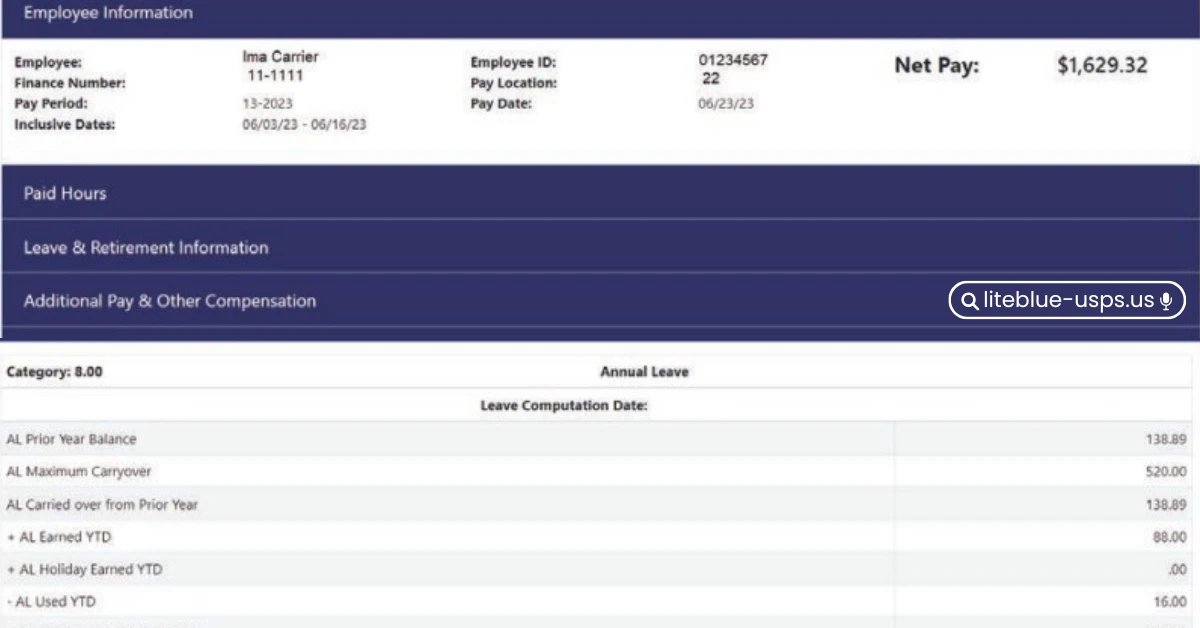
Reading your ePayroll pay statement is important for catching errors. Here’s a breakdown of what you’ll see:
Guides help interpret codes and spot errors.
Common Issues & Fixes
Like any online system, LiteBlue ePayroll sometimes has glitches. Here are the most common issues and how to fix them:
Redirection Loops / Page Not Loading
Clear your browser cache and cookies. Try Chrome or Edge instead of Safari/Firefox. Log out and back in.
Login Problems
Make sure you’re using your EIN and SSP password. Reset your SSP if needed. For MFA issues, update your contact info in LiteBlue.
Missing Pay Stubs / Apps
ePayroll only stores the last 40 pay periods. For older stubs, request them through USPS HR.
System Down Time
It rarely happens, but it is possible. Call the USPS IT Help Desk at 1-800-877-7435 if the issue persists. Issues with app visibility on the homepage persist a workaround is available via the “My HR” tab. Rural carriers note unique timing.
Security & Related Services
Because ePayroll contains sensitive payroll data, USPS has built in security measures:
Pro Tips from USPS Employees
2025 Updates
The official 2025 USPS payroll schedule is available via LiteBlue. No new ePayroll features have been announced yet, but access glitches continue to be a common complaint. USPS is expected to roll out patches, so keep an eye on LiteBlue notices.
Final Thoughts
LiteBlue ePayroll is an essential tool for every USPS employee. It puts payroll information at your fingertips, making it easier to stay organized, track earnings, and maintain accurate records without relying on paper stubs. Just remember to log in regularly, save your stubs, and follow security best practices.